 Overview
The purpose of this document is to define the setup process in HubSpot to create a connected app to received lead data from Rollick Enterprise Lead Management System (ELMS).
This document is mainly intended for the business owners and the internal technical HubSpot support team.
Integration Setup Steps
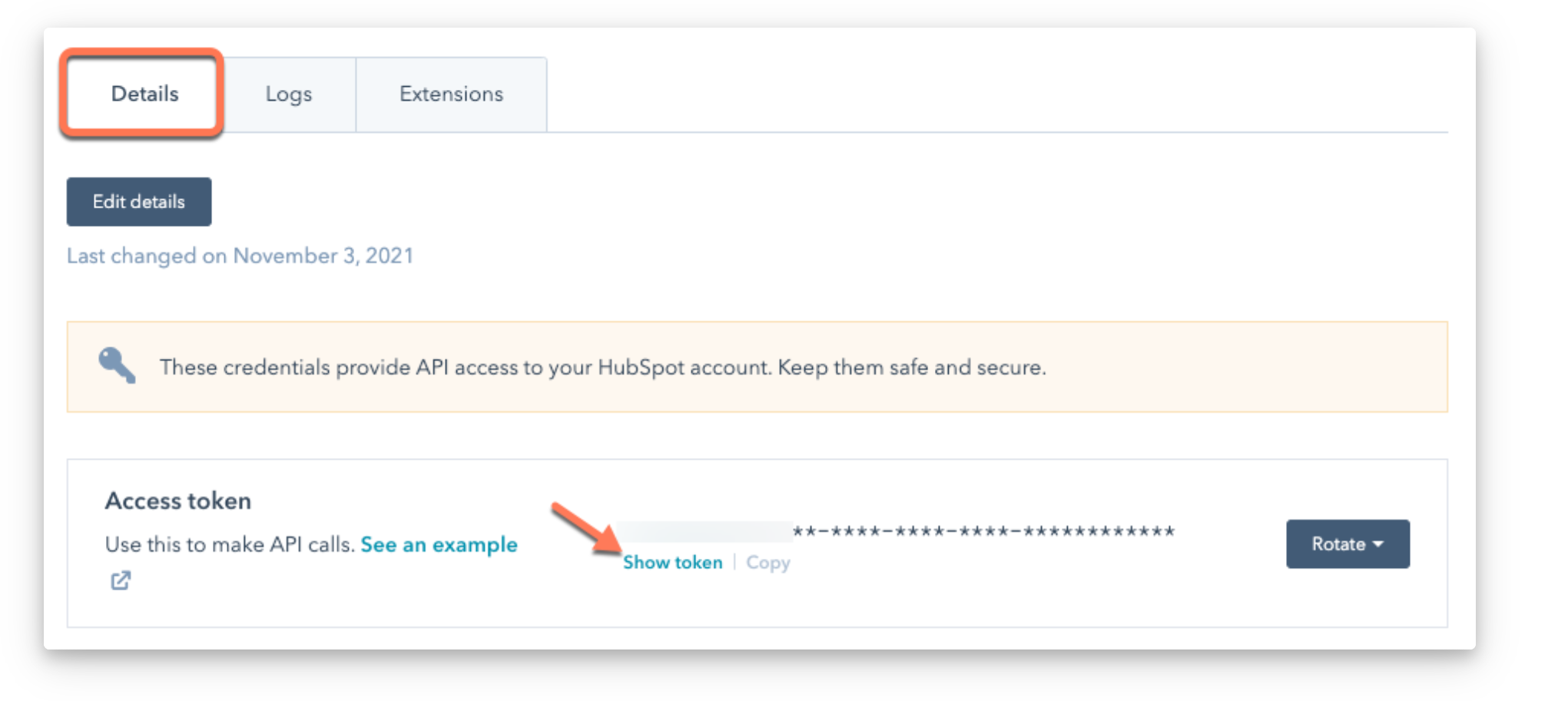
1. Within HubSpot navigate to your private app. On the Details tab of the settings page of your private app, click Show Token to access your token and provide to Rollick's COE team. This token will allow Aimbase leads to your HubSpot account.
If you need to migrate an API key to start using an API token, reference this article.
2. Below is a list of fields that Aimbase will map to HubSpot's Contact API endpoint. The fields indicated with an * are standard fields within HubSpot. The fields that DO NOT have an * will need to be created with the HubSpot account. If you wish to add more custom fields (i.e. LeadDate), please let our COE team (clientsupport@rollick.io) know so field mapping can be set up correctly.
This can be done under Settings > Properties.
| Aimbase Field | HubSpot Field | Notes |
| First Name | firstname* | Standard HubSpot fields. |
| Last Name | lastname* | |
| email* | ||
| Address | address* | |
| City | city* | |
| State | state* | |
| Postal Code | zip* | |
| mobilephone* | ||
| MobilePhone or HomePhone | phone* | Standard HubSpot field. If Aimbase has a value for mobile phone it will be passed, in this field. If it doesn't home phone will be mapped. |
| Brand | brand | Add these fields to HubSpot. |
| Product Name | productname | |
| Product Model Year | productyear | |
| LeadTypeName | leadtype | |
| LeadSourceName | leadsource | |
| LeadCategoryName | leadcategory | |
3. Set Up Disposition
Note: Before setting up the webhook, please provide all values that may be sent to Rollick in the hs_lead_status field to the COE (clientsupport@rollick.io) so the appropriate mapping can be set up.
1. Log in to HubSpot.
2. Navigate to Development / Developer Settings

3. Open the application that was created for the Rollick integration.

4. Select the Webhooks tab.

5. Click Create Webhook (or create a new webhook subscription).
6. Enter the Rollick webhook URL.
- Target URL: https://crmintegration.aimbase.net/api/Disposition?source=HubSpot
7. Configure a Property Change Event for the HS Lead Status field.
-
This causes HubSpot to send a webhook notification whenever the lead status changes.

8. Save the configuration by clicking Commit Changes.